



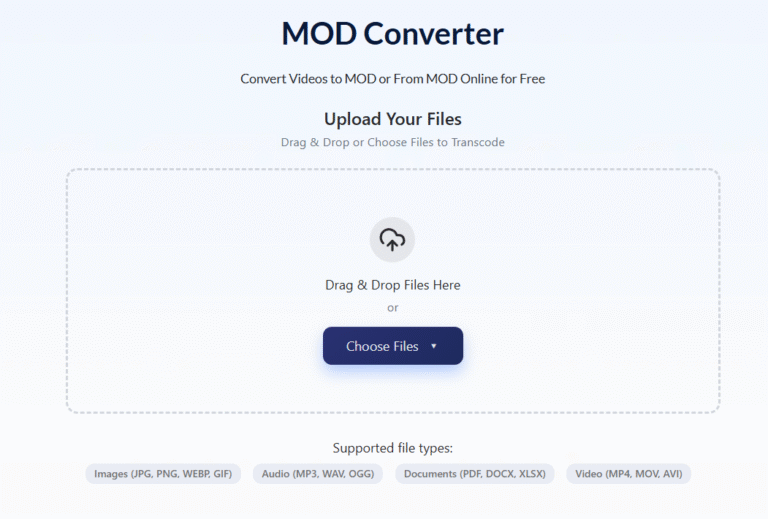
Those home videos from the family camcorder — birthdays, holidays, first steps — millions of them are sitting on hard drives in MOD format, and most modern devices won’t touch them. If you’ve just plugged in an old JVC Everio or Panasonic camcorder and found a folder of .mod files that refuse to open, AhaConvert converts MOD to MP4 free in your browser with no software required. But understanding what MOD actually is will save you from the most common conversion mistakes.
What Is a MOD File?
A MOD file is a video container format used as the native recording format on JVC Everio camcorders and select Panasonic and Canon models produced roughly between 2005 and 2015.
Despite the unfamiliar extension, MOD is not an exotic proprietary codec. It is structurally a modified MPEG Program Stream — the same underlying technology used in DVD video. Inside every .mod file you’ll find:
- Video: MPEG-2 encoded at 4–8 Mbps
- Audio: MPEG-1 Layer II (MP2) or Dolby Digital AC-3
- Resolution: 720×480 pixels (NTSC regions — USA, Japan) or 720×576 pixels (PAL regions — Europe, Australia)
- Aspect ratio metadata: stored separately, indicating 4:3 or 16:9 widescreen
The reason MOD files cause chaos on modern devices isn’t the video quality — it’s that MPEG-2 decoders are no longer bundled in most operating systems, browsers, or default media players. The container is recognised, the codec inside isn’t.
The rename trick: Because MOD is structurally identical to an MPEG Program Stream, renaming .mod to .mpg or .mpeg causes many media players to treat it as a standard MPEG file and attempt playback with their existing MPEG-2 decoder. This works in roughly 70% of cases. It fails when the camcorder embedded non-standard metadata headers that confuse the player’s format detection.
MOD vs TOD: The Companion Format Nobody Explains
If your JVC Everio also has files ending in .tod, you have both halves of JVC’s recording system:
| MOD | TOD | |
| Quality | Standard Definition (720×480/576) | High Definition (1440×1080 or 1920×1080) |
| Compression | MPEG-2 | MPEG-2 (higher bitrate) or H.264 |
| Typical bitrate | 4–8 Mbps | 8–17 Mbps |
| File size (1 hour) | 2–4 GB | 5–10 GB |
| Extension | .mod | .tod |
| Conversion treatment | Convert to MP4 | Convert to MP4 |
TOD was JVC’s answer to the HD era — same container concept, higher resolution, higher bitrate. Both formats convert to MP4 using identical tools and processes.
Why MOD Files Won’t Play on Modern Devices
Three specific reasons:
- MPEG-2 decoder removal: Windows 10 and 11 removed the MPEG-2 decoder from Windows Media Player in 2015. Without it, .modfiles opened in WMP show a codec error even though the file is perfectly intact.
- Aspect ratio metadata ignored: JVC Everio cameras stored widescreen flag information as metadata separate from the video stream. Players that ignore this metadata display 16:9 footage squashed into a 4:3 box — producing the stretched, distorted look that confuses most users.
- Interlaced video: MOD files record in interlaced format (480i or 576i) — a broadcast television technique where each frame is split into alternating horizontal lines displayed in sequence. Modern progressive-scan monitors display both fields simultaneously, creating a combing effect — visible horizontal lines on moving objects. Proper conversion requires deinterlacing during export.
Immediate fix for playback: Install VLC Media Player (free). VLC includes its own MPEG-2 decoder, reads JVC’s aspect ratio metadata correctly, and handles interlaced playback without additional configuration. Works on Windows, Mac, Linux, iOS, and Android.
How to Convert MOD to MP4 (Step-by-Step)
Converting to MP4 solves every compatibility issue permanently — native iPhone and Android playback, YouTube uploads, editing software, smart TV streaming.
Using AhaConvert (free, browser-based, no installation):
- Open AhaConvert’s free online MOD converter
- Upload your .modor .tod file from your computer
- Select MP4 as the output format
- Choose 264 video + AAC audio— maximum device compatibility
- Enable deinterlacing if the option is available (prevents combing on modern screens)
- Keep resolution at 720×480 or 720×576— match source, never upscale
- Click Convert and download
AhaConvert handles MPEG-2 video and MP2 audio correctly, preserves the original aspect ratio metadata, processes files with 256-bit SSL encryption, deletes them within 24 hours, and requires no account or software.
Recommended settings:
| Destination | Video Codec | Bitrate | Audio | Deinterlace |
| General playback | H.264 | 5,000 kbps | AAC 192kbps | Yes |
| YouTube upload | H.264 | 8,000 kbps | AAC 192kbps | Yes |
| Long-term archive | H.265 | 5,000 kbps | AAC 192kbps | Yes |
| Editing software | H.264 | 10,000 kbps | AAC 320kbps | Yes |
Always deinterlace. MOD footage displayed without deinterlacing shows horizontal combing on modern progressive screens — the most visible quality degradation in converted camcorder footage.
How to Transfer MOD Files From a Camcorder to Your Computer
Before converting, you need the files on your computer. JVC Everio cameras store MOD files on internal hard drives or SD cards in a folder structure: SD_VIDEO/PRG001/ or similar.
Three transfer methods:
- USB cable: Connect the camcorder directly. The device mounts as a removable drive. Navigate to the SD_VIDEO folder and copy the .mod
- SD card reader: Remove the SD card and use a card reader. Faster than USB for large archives.
- Direct card access: Some JVC models use standard SDHC cards — compatible with any card reader.
Copy the full folder structure, not just individual files. Some camcorders store chapter information in companion files alongside the MOD files.
Frequently Asked Questions
What is a MOD file?
A MOD file is a standard-definition video container used natively by JVC Everio camcorders and some Panasonic and Canon models from roughly 2005 to 2015. It contains MPEG-2 video at 720×480 (NTSC) or 720×576 (PAL) resolution with MP2 audio. The format is structurally identical to an MPEG Program Stream — renaming .mod to .mpg makes it playable in many media players. MOD was paired with TOD format for high-definition recordings on the same camcorders.
Why won’t my MOD file play on Windows 10 or 11?
Microsoft removed the MPEG-2 decoder from Windows Media Player in Windows 10. Without this decoder, Windows can’t process the video stream inside MOD files even though the file itself is intact. Install VLC Media Player (free) for immediate playback — it includes its own MPEG-2 decoder. Alternatively, convert to MP4 using AhaConvert for permanent compatibility on all devices without requiring VLC.
What is the difference between MOD and TOD files?
Both are JVC camcorder formats. MOD records standard-definition video (720×480 or 720×576) at 4–8 Mbps using MPEG-2. TOD records high-definition video (up to 1920×1080) at 8–17 Mbps. Both use the same container structure and convert to MP4 using identical tools and settings. If your camcorder folder contains both extensions, MOD files are your SD recordings and TOD files are your HD recordings.
Can I convert MOD to MP4 without losing quality?
At 5,000–8,000 kbps H.264 output, quality loss from MOD to MP4 conversion is invisible for standard viewing. The critical settings are: match the source resolution (720×480 or 720×576), match the original frame rate (25fps PAL or 29.97fps NTSC), and enable deinterlacing. Deinterlacing is the single most important setting — without it, converted footage shows horizontal combing artifacts on modern screens.
Why does my MOD video look stretched or squashed?
JVC Everio cameras stored the widescreen (16:9) flag as separate metadata rather than encoding it into the video stream. Media players that ignore this metadata display the video at its raw 720×480 dimensions — producing a squashed 4:3 image from footage that was actually shot in 16:9. VLC reads this metadata correctly. During conversion, verify the aspect ratio setting matches the original — select 16:9 for widescreen footage.
The Bottom Line
MOD files aren’t lost — they’re just waiting for the right tool. VLC opens them today, and a reliable MOD Converter like AhaConvert converts them to universally compatible MP4 in minutes, free, with no account and no software to install. Convert once, deinterlace correctly, match the source resolution — and those JVC Everio family recordings stay watchable for every device and every generation that comes after.
