



Key Takeaways
- Business PDF documents guarantee formatting and access no matter what device or OS it has.
- By converting to PDF, businesses can be assured that their layouts, images, and fonts will be maintained without accidental alteration or distortion.
- From built-in software to online tools, desktop applications, and automated systems, there’s a gamut of conversion options for different technical skills and business requirements.
- Using security features like password protection, encryption, and signatures aids in protecting confidential data and authenticating documents.
- We’re turning business documents into shareable PDFs, with optimized file size, accessibility, and searchability for global teams.
- Diving deeper into PDF features such as interactivity, version control, and archival standards can enhance document engagement and provide efficient long-term management.
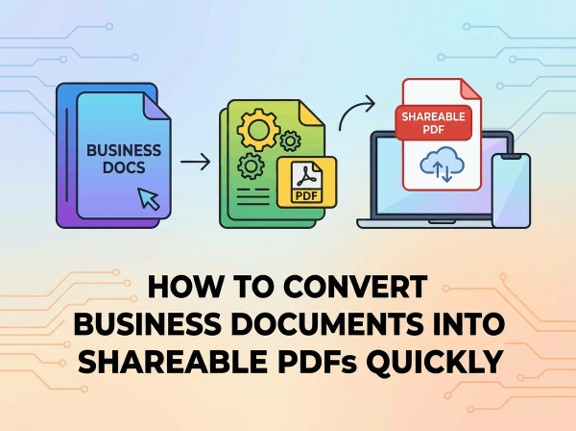
To translate business documents to shareable PDFs, most default to barebones file utilities or native software in word processors and clouds. PDFs preserve your formatting, make sharing simple, and function across multiple device types. Teams rely on them to stay transparent and secure for reports, contracts, or presentations. In the following sections, discover how to make this step simple, seamless, and suited to your requirements.
Why PDFs Matter
PDFs are the de facto format for business documents globally due to their potent combination of compatibility, reliability, and security. Whether you’re in a hectic New York office or at home in Tokyo, PDFs make it easy to exchange, read, and archive critical documents.
Universal Access
Why are PDFs important? They pop up on any screen, laptop, tablet, or phone — regardless of manufacturer or OS. No special software is required, which is less of a headache for teams or clients on different platforms. Most modern browsers have native PDF viewers, so users can view a PDF directly in their browser window.
It’s fast to email a PDF or share it through Google Drive or other cloud services. PDFs are small in size, too. They commonly compress huge documents down to reasonable-sized levels. Think about sending a full, graphics-laden annual report in less than 5 MB. With a PDF as common as email, you can reach a broad, global audience without concern that they won’t be able to open it.
Document Integrity
If a file is converted to PDF, the original design, including fonts, images, charts, and layout, remains intact. Whether it is for formal agreements, invoices, or documentation, this uniform display is essential. In other formats, a small font change or margin shift can alter the entire appearance, leading to ambiguity or miscommunication.
PDFs fixate content, so whatever is visible on one screen is visible on all. This is significant for any business that depends on visual content. Imagine engineers exchanging blueprints or filmmakers distributing storyboards. Even lengthy, complicated documents such as legal agreements preserve every last bit of content, which is important for upholding professionalism and credibility.
Enhanced Security
| Security Feature | PDF Format | Word/Excel/Other Formats |
| Password Protection | Yes | Limited |
| Encryption | Strong (AES 256-bit) | Basic/Weak |
| Digital Signatures | Yes | Limited/Basic |
| Restrict Editing/Copy | Yes | No |
PDFs provide robust security options. Sensitive files can be password-locked, out of prying eyes. Encryption using AES 256-bit protects the contents of the file. Digital signatures provide further trust, enabling users to verify that the document is authentic.
Many business documents require preventing people from editing, copying, or printing sensitive information. PDFs can do this with easy settings. These capabilities are exactly the reason that PDFs have become the de facto standard format for private contracts, medical records, and financial statements. The format just keeps getting smarter and more secure every year.
Conversion Methods
Converting business docs into shareable PDFs makes files nice and lightweight, and easy to read and share on various devices. What are the various ways to convert files such as Word, Excel, or images into PDFs? All have their pros for different purposes and different levels of technical ability. Choosing the appropriate tool is important for consistent results, and several choices today allow you to operate directly from your desktop or browser. Below are the main methods businesses use for document conversion:
1. Native Software
Most common office software, such as MS Word and Excel, have native PDF export functionality. Users can simply open their file, click “Save As,” and choose PDF as the output. This maintains formatting and fonts near the original, so distribution is seamless.
Adobe Acrobat shines for more complex tasks, providing comprehensive editing, merging, and splitting capabilities that extend past simple export. Deploying the tools already on hand — particularly when staff are familiar with them — is expedient. Exploring output choices — like image quality or security — allows you to make sure your PDFs are fine-tuned to business specifications.
2. Online Tools
Online PDF converters such as Smallpdf and Jumpshare offer fast file conversions without any downloads. These portals allow users to simply drag and drop documents or upload directly from Google Drive or Dropbox.
Web-based tools are convenient for quick work or one-off jobs. They support many inputs, from DOCX to JPG, and produce clean PDFs. For those concerned with privacy, this online document conversion tool and similar services often promise to erase files after conversion to protect user data. The primary restriction is file size or the number of free tasks per day, but for most casual needs, these services still offer excellent convenience and speed.
A few online services leverage OCR to convert scanned images into searchable PDFs or editable text. This makes them useful for digitizing paper documents or capturing tables for analysis.
3. Desktop Applications
Dedicated desktop apps, such as Adobe Acrobat DC or Foxit PDF Editor, fit users who convert documents frequently or require additional functionality. These apps operate locally, so documents remain on the user’s machine for enhanced privacy.
They provide batch conversion, allowing employees to convert multiple documents simultaneously, which is key for bulk work such as generating monthly reports. Free trials are standard, so companies can try before they buy. Though setup is more time-consuming, their powerful editing, OCR, and file merge tools might be worth it to groups with frequent PDF requirements.
4. Automated Systems
Automated systems are ideal for organizations that process bulk documents every day. These tools convert files in bulk, quickly saving you time by converting hundreds or thousands simultaneously. Batch processing is fantastic for invoices, contracts, or any repeat paperwork.
Certain utilities even allow scheduling conversions, so that new files are processed automatically on a daily or weekly basis. Business software integrations require less manual effort and lead to fewer errors. Automated workflows can extract data—tables, numbers, or text—from PDFs and transmit it to other applications like Excel.
Preserving Quality
Transforming business content into shareable PDFs requires a thoughtful strategy to maintain the original quality. Minor errors can result in lost tags, broken layout, or inaccessible content for everyone, from casual users to those with impairments. Below are the steps to maintain high-quality output during conversion:
- Prefer built-in styles and plain layouts in the source document.
- Make sure all images have alt text and are in the correct locations.
- Make sure that tables have obvious header rows and aren’t too nested.
- Set document tags to preserve reading order and structure.
- PDFs: Preview your PDF before you share it to catch errors in formatting or images.
- Select settings that retain original resolution and color contrast.
- Make sure all links have descriptive link text.
Formatting
Preserving text formatting is about more than just appearances. It helps maintain the structure of your document and keeps it clear. Styles, headings, and indentation indicate sections to megavisitor readers, including screen reader users.
It’s hard to navigate without obvious formatting. Page layouts must be reviewed post conversion for misaligned text or torn columns. This holds notably for multi-columned documents, lists, or tables. At times, automated converters confuse these layouts.
Set quality for each document type. For instance, a presentation may need wider margins or landscape orientation, whereas a report may require numbered headings. Use the same font on all pages. It looks professional and helps readability, which is a real headache to read, especially for those with visual processing issues.
Images
Pictures are usually where quality loss is most apparent. Blurry logos, misaligned charts, or absent graphics will sabotage a report’s authority. We want to maintain image quality and image placement in the PDF.
This means picking the right resolution before transcoding. If the resolution is too low, details disappear. If it is too high, the file size increases, complicating sharing.
Image optimization can reduce file size without sacrificing quality. For example, resizing an image at 150 dpi for a typical report is a good compromise. Interactive images, such as clickable diagrams, may increase engagement, but they need to stay accessible. Adding alt text makes it accessible to all, no matter what device or ability they have.
Fonts
Saving fonts with PDFs allows text to look the same on any computer and prevents awkward font substitutions. Failing to do so can result in missing characters or mismatched text, especially when sharing files globally. These risks are diminished and guaranteed to work with common fonts like Arial or Times New Roman.
In some uniquely branded documents, converting text to outlines can preserve the appearance, albeit no longer selectable or searchable. Remember to always offer fallbacks for accessibility. With well-selected typefaces and embedding, we maintain both style and worldwide legibility.
Securing Documents
Securing documents is essential for any company that handles sensitive information. PDF files are great to share because they preserve formatting and display the same on any device. Still, threats like data breaches and cyber attacks really exist. Businesses suffered huge losses of $2.94 billion in the US alone in 2023 because documents weren’t well secured. With so much to lose, it’s smart to implement robust protection for all business PDFs. Below are practical ways to protect PDFs from being misused or changed:
- Set passwords or encryption before sharing files
- Limit file access with permissions or unique links
- Use digital signatures for proof and trust
- Remove or hide sensitive data with redaction tools
- Train staff on safe document practices
Selecting the appropriate protections is a matter of how sensitive your data is. The more valuable the data, the more robust your shield. Since most office workers spend roughly half their time processing documents, clever safety measures reduce time and anxiety. Teams need to be familiar with these tools and use them daily to maintain low risk levels.
Access Control
Establishing who can view, print, or edit a PDF is the front line. Access controls allow businesses to select precisely what any individual may do with a document. For instance, a contract could be sent to a client who is allowed to view the document but not modify or print it. This prevents leaks or abuse if the document ends up in the wrong hands.
Password protection is an easy yet effective means of adding a layer of security, particularly around sensitive documents shared with an external partner. Most PDF tools allow you to generate authorized links, so the file will only open for the right individual. These are simple to implement, and they have a big safety effect.
Digital Signatures
Digital signatures are very important to document authenticity and integrity. They utilize a secure code to demonstrate who signed and at what time, assuring all parties in a transaction. This is quicker than printing, signing, and scanning. Most digital signing tools maintain a log, simplifying audit trails.
The legal world has now embraced e-signatures in many jurisdictions, where they are as valid as pen and ink signatures. Contracts or agreements signed in this manner are valid to conduct business anywhere.
Content Redaction
Content redaction is essential before distributing PDFs to outside parties. Companies deal with materials such as personal information or proprietary information that isn’t appropriate for general members to view. Redacting or obscuring sensitive sentences ensures they won’t fall into the wrong hands. Several PDF editors come with secure redaction tools, allowing you to permanently blackout sensitive information.
We need to do a thorough read after redacting to make sure all critical details are deleted. Leave a single bit unguarded and you risk legal trouble or data leaks. Laws in many countries make it a responsibility to keep customer data secure, so adequate redaction is not only clever—it is mandatory.
Optimizing Shareability
Optimizing the shareability of business documents is more than just conversion to PDF. It’s about being sure files are rapid to share, effortless to access, easy to discover, and inclusive to all. By optimizing file size, accessibility, and searchability, users can ensure their documents work well with other devices and platforms, facilitate team collaboration, and even help their work find a global audience.
File Size
Huge PDFs drag down uploads and downloads, and sharing becomes more difficult for you and your recipient. It’s particularly important when transmitting files on slower connections or sharing among multiple devices.
To maintain files shareable, compress PDFs through native export settings provided in many applications, like Microsoft Word or online converters. Smallpdf, Adobe Acrobat, or PDF24 provide functionalities to compress size without impacting legibility or images.
Size and quality are in a balancing act. Cram in too much, and charts, photos, or diagrams will lose their crispness. Compress too little, and the file might be too cumbersome to email or to post to cloud storage. Many strong tools will even let you preview the output, so you can make sure text remains sharp and images remain sharp.
Choose an obvious, straightforward file name. No weird symbols or long strings of numbers. Keep it to names that describe the content, like “2024_Sales_Report.pdf” or “Recipe_BananaBread.pdf.” This makes it easy for us all to locate the correct file pronto, whether in shared drives or email threads.
Accessibility
Accessible PDFs provide an equal opportunity for all to access your documents, including people with disabilities. Make sure to add alt text to images so screen readers can read them aloud. Use headings and tags for sections to ensure assistive technologies navigate the paper smoothly. Tagging comes in handy when you’re clipping documents from PowerPoint or web pages, for example.
By following universal access recommendations like the Web Content Accessibility Guidelines (WCAG), you can make sure no one’s excluded. Run your PDFs through NVDA or VoiceOver to test them before you share them. That matters for business because inclusivity fosters cooperation and broader appeal.
Searchability
Searchable PDFs expedite locating information. Searchable files enable users to highlight and copy or search for keywords, which is extremely useful if you have a report, contract, or multi-page document. Most scanned docs are simply images, so OCR them to make them into actual text. Software such as Adobe Acrobat or Abby FineReader does a good job at it.
Include metadata – document title, author, keywords – to enhance search results in document management or cloud systems. With search-ready, well-tagged PDFs, teams collaborate more efficiently and share with less friction.
Beyond Conversion
A PDF is more than a final resting place for business documents. More than conversion, they power smart features that assist in optimizing document management, facilitating collaboration, and opening up new possibilities for interacting with data. Today’s PDFs can include interactivity, reliable version control, and archival standards compliance. These features are critical for businesses requiring streamlined, secure, and scalable document processes.
| Feature | Description |
| Hyperlinks | Allow navigation within the document or to external sources. |
| Fillable Forms | Enable users to input data directly into the PDF. |
| Embedded Multimedia | Support audio, video, and images for richer content. |
| Digital Signatures | Facilitate secure and verifiable document approval. |
| Encryption | Protect sensitive content with password or certificate-based security. |
| OCR | Convert scanned text into searchable and editable content. |
| Annotations/Comments | Allow feedback and notes without altering the main content. |
Interactive Elements
Forms, clickable buttons, and embedded media help transform a simple document into an immersive experience. Fillable forms enable users to send input or information directly from the PDF, simplifying information gathering during surveys or onboarding. Tons of links can direct readers, enabling them to navigate an extensive manual quickly or jump to useful resources.
These capabilities come in handy in training modules and client-facing reports. When proposing, an embedded video or interactive chart can help drive the key points home. Forms can streamline processes, like placing orders or requesting services, that enhance efficiency and time savings.
Many tools online now allow for the simple generation of interactive PDFs. Solutions such as Adobe Acrobat, PDFescape, and various browser-based platforms enable non-design-savvy users to inject interactive elements. By embracing these tools, your business can differentiate itself and make documents more valuable to both internal teams and external collaborators.
Version Control
For teams sharing and editing documents, version control is everything. Without it, teams can lose changes, resulting in confusion or lost work. Other than conversion, tools that capture edits, comments, and document history, such as Adobe Acrobat or Nitro, allow you to track who modified what and when.
With a versioning system, you don’t end up with missed mistakes or outdated versions. This is particularly true for contracts, policy manuals, or compliance reports. A good versioning system, whether file names or digital timestamps, helps collaboration stay organized.
When every change is recorded in a single document, teams run from one version of reality. This minimizes mistakes and preserves an audit trail for legal scrutiny. In more dynamic environments, automated workflows and browser-based tools can accelerate document sharing and approval.
Archival Standards
Conforming with archival standards for long-term business document storage is a given. PDF/A, an ISO standardized flavor of PDF, exists for this purpose. It keeps files readable and unchanged for years after they are created. With PDF/A, businesses can meet industry regulations, such as for financial or medical documents.
Your archiving best practices, like naming files clearly, consistent folder structures, and metadata, make it all easily searchable and retrievable. OCR can make scanned files searchable, which is crucial for retrieving information on the fly during audits or reviews.
Storing documents in PDF/A further safeguards them from data loss. Other file types fall out of date. PDF/A files are designed for permanence, ensuring your business remains compliant and future-proof. Secure browser-based tools provide additional privacy, as files remain on your device.
Conclusion
Making business documents into shareable PDFs keeps life easy. Your files remain secure, appear professional, and travel fast among employees or customers. Consider a sales report, a project plan, or a training guide. PDFs hold all the formatting intact. No funky formatting, no missing pages.
You can password-protect it, reduce the file size, or add a watermark with your logo. There are tons of different options to customize to your liking. With clever tools, anyone can convert a doc into a shareable PDF in a few clicks.
To get more from your files, check out these tips and notice how work flows much more smoothly. Share your own favorite way to send business PDFs and help everyone do better.
