



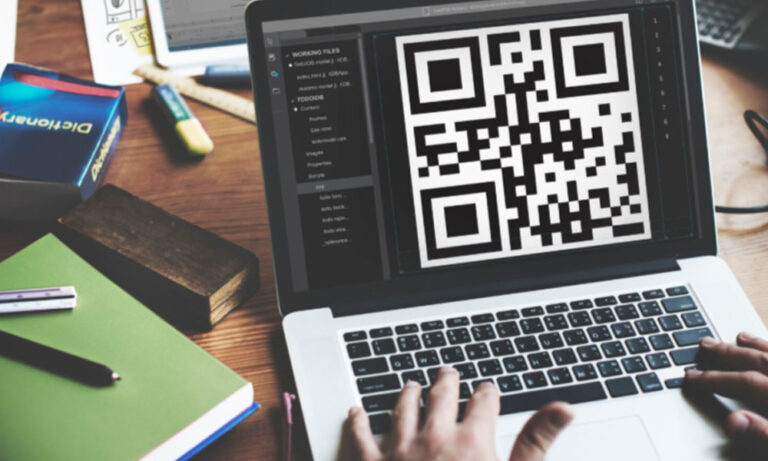
A generated QR-style square can look perfectly plausible and still lead nowhere. For GPT Image 2 QR code designs, make the artwork and the functional code in separate steps. Generate the visual setting, create the QR symbol with an encoder for the intended destination, then place the tested symbol into the layout.
This gives each part a clear job. The image establishes the design. The encoded square carries the data. You can change the background or headline without asking a generative model to redraw the modules that a phone must read.
Give GPT Image 2 the artwork around the QR code
Use GPT Image 2 to develop a composition with reserved space for a code. For a workshop poster, that might mean an illustration across the top, a readable information area and a plain block near the lower edge where registration will be placed.
Describe the reserved area as empty. An illustrative prompt might request a poster background for a ceramics workshop, with a simple untextured square area for a QR code that will be added later. Ask for no imitation code, decorative scanning pattern or invented registration text.
Keep the event details in editable text if they may change. A date corrected after generation should not require rebuilding the whole image. The same applies to a short instruction such as “Scan to register,” which needs to describe the actual destination.
Decide where the code will sit before filling the composition with detail. It needs a clean surrounding margin, and a person needs to notice it. A visually busy corner can make the code harder to locate even if the symbol itself remains technically intact.
Do not ask the model to turn the code into a texture or blend it into an object when reliable scanning is the main requirement. Creative experiments can be evaluated separately. A practical event poster needs a dependable route from the printed square to the intended page.
Keep the encoded square intact
Create the QR symbol using a tool that explicitly encodes your chosen destination. Inspect that destination before generating the symbol. A typo in the address remains a typo even if the QR code scans flawlessly.
If the code uses a redirect managed by another service, understand who controls that redirect and whether it will remain available. The visual symbol and the destination’s continued operation are separate dependencies. For an event, check them again before printing or distributing the final file.
DENSO WAVE’s QR Code guidance specifies a quiet zone four modules wide around a standard QR symbol. A module is one of the small squares in the code. Keep that surrounding area clear rather than letting a border, photograph or caption intrude into it.
Place the code as a separate layer or object. Preserve its shape and avoid decorative distortion, blur or uneven scaling. Keep a clean master so you can replace the destination or adjust the layout without repeatedly editing an already compressed copy.
Choose the displayed size for the real use. A code on a handout will be viewed differently from one on a distant wall. There is no single size that can be declared suitable without considering the encoded data, printing, viewing distance and camera behavior. Test the actual arrangement.
Strong visual separation between the dark and light modules is a sensible starting point. If you change colours, repeat the scan checks. A palette that looks elegant on a bright monitor can behave differently on paper or under uneven lighting.
You can develop an alternative poster background with Nano Banana Pro while keeping the same verified code asset. This makes it possible to compare artwork without changing the encoded data. Place the code after generation in each version, rather than asking either model to preserve a pasted symbol through another edit.
Test the copy people will actually scan
Begin by decoding the symbol and reading the destination. Then open it and check the resulting page. “It scans” is incomplete if the page is wrong, unavailable or requires an unexpected login.
Next, export the final layout and scan that export. The code may have been resized, compressed or placed too close to another element during production. A successful scan of the original standalone asset does not verify the poster file.
For print, make a sample at the intended size and test it under plausible viewing conditions. Try the distance at which someone would hold the handout or stand near the display. If the design will be used on a screen, test that presentation too; glare and interface overlays can affect what the camera sees.
Use more than one ordinary device when the distribution warrants it. You are looking for obvious usability failures, not claiming a universal certification from a handful of successful scans. If scanning is hesitant, simplify the surroundings or increase the usable code area, then test again.
Give people another way to act when practical. A short readable destination or a clear instruction can help someone who cannot scan at that moment. Make sure that fallback reaches the same event or resource as the code.
Keep the final tested file and the destination record together. If the date, page or artwork changes, identify which checks need repeating before the replacement is distributed.
GPT Image 2 QR code designs work well when the generator handles the illustration and an encoder handles the data. Preserve that division through export, then scan the exact copy your audience will receive.
