



Cropping a video is simple if you have an iPhone—but the real challenge comes when you try to do it without losing quality. So, a lot of users edit videos right from the Photos app and wonder why the end result is a little pixelated or not specifically perfect for social media platforms.
Fortunately, you can crop video online on an iPhone without any pro editing skills or paid apps. Be it vignetting, resizing for Instagram, or even generating content for YouTube Shorts: to maintain crisp & clear video in your footage, there are quick and easy methods to achieve it.
This guide will introduce you to both the built-in method with iOS tools and a better one that helps crop video without quality loss for professional results.
How to Crop a Video on iPhone (Using Built-in Photos App)
One of the simplest ways to crop a video on an iPhone is by utilising its default Photos app. No downloading, and the phases are straightforward for all levels of individuals.
Step 1: Open Photos App
So head over to your iPhone and open the Photos app where you keep the video.
Step 2: Select Your Video
Find and tap on the video you want to edit.
Step 3: Tap Edit
Select the “Edit” option from the top right corner of the screen to bring up some editing tools.
Step 4: Use Crop Tool
Tap on the bottom select crop icon. The frame can be adjusted by dragging the corners
Step 5: Save Changes
When you’re satisfied with the output, hit Done, and your video will be saved.
It is a fast method, but it lacks control over quality and export parameters.
How to Crop a Video on iPhone Without Losing Quality (Best Method)
The Photos app is really useful, but it will compress your video a little bit post-edit. For something of higher quality that will help you preserve as much quality as possible, a more suitable option is to use a free video cropping tool like VideoCutter.io.
In this way, you can crop video on iPhone without quality loss because it is applied at a much lower level, thus avoiding heavy compression or re-encoding.
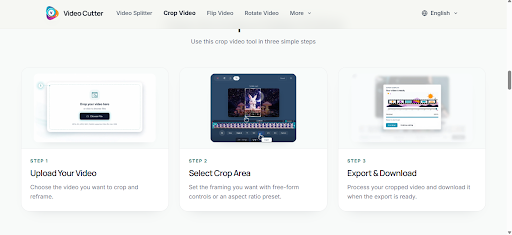
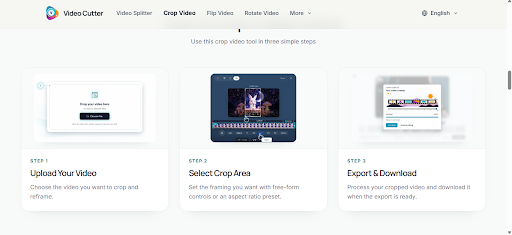
All you have to do is drag and drop your video, edit the crop area, select the suitable aspect ratio, and export at high quality! It is particularly helpful if you are focused on content for professional off-label use, YouTube or social media that requires clarity in the message.
 Crop Video for Social Media from iPhone
Various sizes of video are routine for social media platforms and a quick crop can be the difference between your content soaring or hitting the ground.
For example:
- Instagram Reels → 9:16 vertical format
- TikTok → 9:16 vertical format
- YouTube Shorts → 9:16 vertical format
Cropping Video for YouTube Shorts — Keeping Movements in Centre and Framing to Fit Mobile Screens. The same goes for Instagram and TikTok, vertical videos perform best.
Final Thoughts
When you need a simpler method to cut video on iPhone without the limits of built-in tools, it’s time to take a faster workaround. Although iPhone editing helps for the initial tweaks, a browser-based tool would allow enough control and clean output where it matters most.
With VideoCutter. iO allows you to crop video quickly from your iPhone without any quality loss. No app, difficult setting to manage or sign up, just upload your video, crop the frame and export it in high quality within seconds.
