



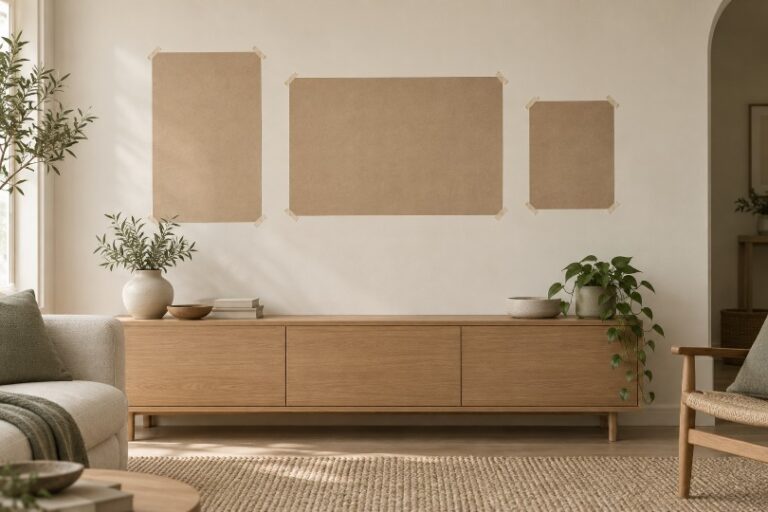
Three pictures can look perfectly balanced in a room preview and unexpectedly crowded on the real wall. The difference may have little to do with taste. The preview has made one frame narrower, left out a wide mount, or given the space above a console more height than it actually has. An attractive arrangement is only useful if the objects can occupy it.
An AI Photo Editor can help explore the visual character of a gallery wall before you commit to an arrangement. Keep that exploration connected to the frames you own or intend to buy. Their outside dimensions, rather than the apparent size of the pictures inside them, determine how much wall they need.
The practical approach is to give the digital preview and the physical check different jobs. Use the image to compare balance, color, and emphasis. Use measurements and paper templates to find out whether the chosen grouping occupies the space in the way you expect.
Measure The Frame Edges Before Comparing The Artwork
Begin with the complete frame, including its border. If a mount surrounds the print, account for that in the finished frame size. Two prints of equal size can occupy noticeably different areas once one has a broad mount and the other has a narrow border.
Measure the usable wall area as well. A nearby doorway, a shelf, or the top of a piece of furniture may matter more than the wall’s full width. You are deciding how the pictures relate to the room people actually use, not filling an empty rectangular canvas.
Imagine a grouping with one broad landscape frame and two smaller portrait frames. If the preview makes all three the same width, it has changed the design problem. The broad frame might need to anchor the composition, while the smaller pair forms a lighter group beside it. Keep those differences visible when comparing arrangements.
A straight-on photograph of the wall is a useful starting point because it makes the arrangement easier to inspect. It still does not turn the photograph into a measured drawing. A camera angle can distort the apparent space, and an edited scene may change it further. If a frame looks unexpectedly small in the preview, check its measured width against the console rather than trusting the image’s proportions.
PicEditor AI can modify an uploaded image and prepare visual alternatives. For this project, use those alternatives as sketches of an arrangement. Keep your actual frame dimensions outside the image as the reference whenever a candidate makes an object look more conveniently sized.
Hold The Frame Sizes Still While Changing The Layout
Compare arrangements using the same set of frames. You might try the broad landscape on the left and the two portraits on the right, then reverse that balance. If the frame sizes change along with their positions, it becomes difficult to tell which arrangement you prefer.
Look first at the grouping as a whole. Does one picture attract attention for a reason, or does it appear to drift away from the others? Are the gaps supporting a coherent group, or have they become leftover space between unrelated objects? These are visual questions a preview can help you consider.
An AI Photo Editor can also help explore a quieter setting around the wall. Keep the furniture and architectural landmarks that establish its scale. Removing the console may produce a cleaner picture while taking away the very object you need to judge the grouping against.
In a Photo editor workflow, save a small number of clearly different arrangements rather than a long sequence of tiny variations. One centered grouping and one deliberately offset grouping give you a decision to make. Ten almost identical candidates can leave the same unresolved spacing question in ten files.
Notice whether the image is quietly improving the room to accommodate the pictures. A wider console, a higher ceiling, or a relocated doorway can make an awkward grouping look plausible. Reject that change as a planning aid, even if the resulting interior is appealing.
Compare The Arrangement With Paper On The Wall
Cut paper rectangles to the outside dimensions of the frames and arrange them on the wall with a temporary attachment suitable for the surface. This turns the selected composition into a physical footprint. You can see the real edges without lifting several frames into place at once.
Step back to the positions from which you normally see the wall. A grouping that feels centered while you stand directly in front of it may look different from the doorway or sofa. The paper lets you move it while keeping the frame sizes fixed.
Use a Photo editor preview beside this physical arrangement to compare the intended balance with the available space. If they disagree, adjust the layout or choose a different set of frames. Do not keep enlarging the virtual wall until the preferred image appears to fit.
Check the gaps at their actual width. Broad borders can make a modest gap feel tight, while a large interval can separate a small frame from the group. You do not need a universal spacing formula; you need to see how these particular frames relate to one another.
Photograph the paper arrangement once you have a promising version. That gives the next preview a source closer to the real plan. Keep the doorway, furniture, and paper edges visible so that the image remains tied to the space rather than becoming a new imagined interior.
Use Image Editing For The Parts It Can Help You Judge
PicEditor AI includes a background-removal route that takes an uploaded image and an Image Size choice. Preparing a picture as a separate visual asset can help you consider it within a composition. The selected image proportion is a canvas choice, however, not a measurement of a physical frame.
Check the prepared asset against the original artwork. A cropped border or altered proportion can change how the print appears inside its frame. If the piece is already framed, a clear photograph of the complete object may be a better planning reference than a tightly isolated image of the artwork alone.
Keep color judgments provisional until you look at the actual prints and frames in the room. A preview can reveal a broad clash or suggest a calmer pairing, but it cannot settle the appearance of a material under your room’s light. Bring the objects together before treating that visual decision as finished.
Let The Wall Decide Which Preview Is Worth Keeping
PicEditor AI is useful for homeowners who want to explore a gallery arrangement before moving frames around. It can help make a visual preference clearer when the source and instructions stay close to the real room. It should not replace the physical size check that tells you whether the arrangement fits.
Choose the preview that still makes sense beside the paper templates and the actual frames. Once the proportions, gaps, and relationship to the furniture agree, you have a plan worth taking further. The most useful picture is the one your wall can accommodate.
