



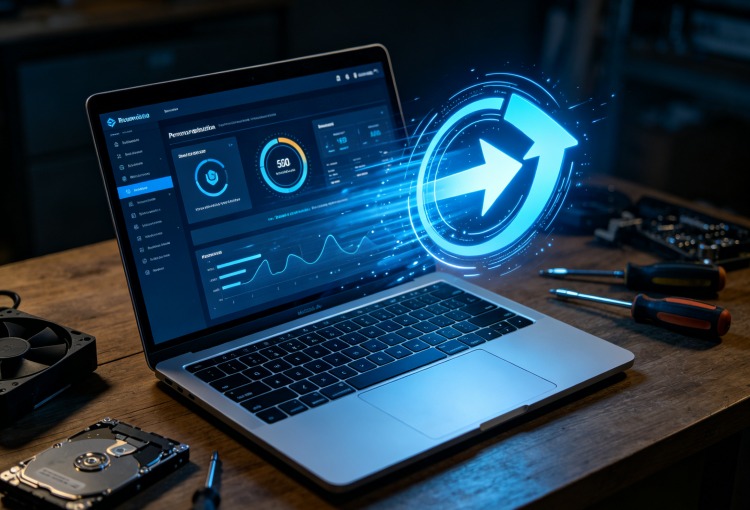
Like many people, I used to think computer maintenance was something I only needed to do when my PC became painfully slow. If programs started taking longer to open or Windows felt less responsive, I’d spend an evening deleting files, checking startup programs, and searching online for performance tips.
The problem was that I never stayed consistent.
I’d clean everything once, forget about it for months, and eventually find myself repeating the same process all over again. It wasn’t difficult work, but it was repetitive and surprisingly time-consuming.
Eventually, I started wondering if there was an easier way to keep my computer running smoothly without constantly managing everything myself.
Realizing Where My Time Was Going
One weekend, I decided to see exactly how much time I was spending on routine maintenance.
I cleared temporary files using Windows tools, emptied old folders, checked which applications launched at startup, reviewed browser data, and looked for unnecessary files taking up storage.
By the time I finished, nearly an hour had passed. The maintenance itself wasn’t complicated, but switching between different Windows menus made the process feel much longer than it needed to be. That’s when I started looking for a solution that could simplify these routine tasks.
Discovering Advanced SystemCare
While researching different Windows cleaner, I came across Advanced SystemCare.
At first, I wasn’t expecting much. I assumed it would simply remove temporary files, but after exploring the software, I realized it combined several optimization features into one place.
Instead of opening multiple Windows settings, I could perform routine maintenance from a single dashboard. More importantly, many of those tasks could be automated, which was exactly what I had been looking for.
Features That Helped Simplify Maintenance
After using Advanced SystemCare for several weeks, a few features quickly became part of my routine.
AI-Powered Scan
This was one of the first features I tried. Instead of deciding what needed attention, Advanced SystemCare analyzed my PC and recommended optimizations based on my system’s condition. It made routine maintenance much simpler because I didn’t have to search for every issue manually.
Junk File Cleanup
Over time, Windows collects temporary files, cached data, installation leftovers, and other unnecessary files. The cleanup feature helped remove that clutter quickly without requiring me to hunt through different folders.
Startup Optimization
I was surprised by how many applications were launching automatically every time I started my computer. Using the startup manager made it much easier to review which programs were actually necessary and which ones could wait until I opened them manually.
Privacy Cleanup
The software also offered privacy cleanup tools that removed browsing traces and other temporary data created during everyday computer use. While I primarily wanted better performance, having privacy-related cleanup included was a useful bonus.
Performance Monitor
Another feature I found useful was the built-in performance monitor. Instead of opening several Windows utilities, I could quickly check CPU usage, memory consumption, and disk activity from one place whenever my computer felt unusually busy.
Automating the Process
The biggest improvement wasn’t a single feature—it was automation. Instead of remembering to perform every maintenance task manually, I scheduled regular scans and cleanups. Now my PC receives routine attention even when I’m busy with work. That simple change saved far more time than I expected. Rather than waiting until performance noticeably declined, maintenance happens regularly in the background.
The Difference After a Few Weeks
The results weren’t dramatic overnight, but after several weeks I began noticing small improvements. My computer started more smoothly. Applications opened faster. There were fewer random slowdowns during everyday tasks.
Most importantly, I wasn’t spending evenings searching through Windows settings trying to figure out why my PC suddenly felt slower. Everything simply stayed more consistent.
Why I Continue Using a PC Cleaner
Windows includes useful maintenance tools, but I found that managing everything manually required more time than I wanted to spend. Using a dependable PC cleaner simplified the entire process by bringing several optimization tools together in one application.
For me, the biggest advantage wasn’t chasing dramatic performance improvements—it was reducing the amount of manual work needed to keep my computer running well.
Pros
- Beginner-friendly interface.
- AI-powered optimization saves time.
- Startup Optimization improves boot management.
- Cleans junk files efficiently.
- Includes privacy cleanup and performance monitoring.
- Automation reduces manual maintenance.
Cons
- Some advanced features require the Pro version.
- Full system scans may take longer on older PCs.
- Regular maintenance habits are still important for the best long-term performance.
Final Thoughts
Looking back, the biggest improvement wasn’t learning new optimization tricks—it was realizing that consistency matters more than occasional deep cleanups.
Using Advanced SystemCare helped automate many of the maintenance tasks I used to perform manually. Features like AI-powered scanning, junk file cleanup, startup optimization, privacy cleanup, and performance monitoring fit naturally into my routine without requiring constant attention.
Combined with a trustworthy PC cleaner, the software has helped me spend less time maintaining my computer and more time actually using it.
