



Knowing how to convert Word to PDF comes in handy more often than people expect. Maybe you’re submitting a resume and don’t want the margins to shift on someone else’s computer. Maybe you’re sending a contract and need it to look the same no matter what device opens it. Or maybe your school or job portal simply won’t accept a .docx file at all.
Word documents are flexible, but that flexibility is also the problem. Fonts can be missing on another computer, spacing can shift, and tables can break across pages differently depending on the software someone uses to open the file. converting a Word document to PDF for work, school, or personal use.
This guide covers the most common conversion methods, explains what to check before converting, and walks through a simple online Word to PDF workflow.
Common Ways to Convert Word to PDF
There is no single “correct” way to convert a file, but the best method depends entirely on what tools you have on hand. To find the most efficient route, I tested the three most common methods using a complex document filled with tables, images, and links.
- Microsoft Word (Save As or Export)
If you already have the paid Microsoft 365 desktop app installed, this is the most direct route. You simply open the file, click File > Save As, and choose PDF. It preserves formatting flawlessly, but it has one major downside: you need an active Office subscription and a computer with the software installed. It’s not an option if you’re on a Chromebook, a mobile device, or a shared computer.
- Google Docs
If you don’t have Word, Google Docs is a decent free alternative. However, the workflow requires patience: you have to upload the .docx file to Google Drive, open it inside Google Docs, and then go to File > Download > PDF Document.
This worked well for a standard document, but I noticed small spacing changes around one heading and table. They were not serious, but it is still worth checking the exported PDF before sending it, especially if your document has detailed formatting.
- Online Word to PDF Converters
Online Word to PDF converters are useful when you want a quick browser-based workflow without opening Word or moving the file into Google Docs. You simply upload the file, click convert, and download the finished PDF in seconds. This route is especially convenient if your device does not have Word installed, or if you need to convert a document quickly while using a shared computer, Chromebook, phone, or tablet.
In my test, the main structure stayed close to the original, including headings, images, and tables. Still, it is also worth doing a quick visual check before sharing the file, especially if the document includes wide tables, custom fonts, or important page breaks.
Since this article focuses on a no-install browser workflow, we’ll use TeraBox’s Word to PDF converter as the working example below.
Before You Convert: Format Your Word Document First
A conversion tool can only work with what is already in your file. In my experience, many post-conversion issues, such as shifted spacing, broken tables, or extra blank pages, usually come from a messy Word document rather than the converter itself.
Before uploading or exporting the file, do a quick layout check:
- Fonts – Use common, widely available fonts. Less common or custom fonts are more likely to get substituted during conversion.
- Spacing and margins – Look for inconsistent spacing, especially if the document was copied and pasted from multiple sources.
- Headings – Make sure heading styles are applied properly rather than just bolded manually, since this keeps structure consistent.
- Images – Check that images are placed correctly and not stretched, and consider compressing oversized images so the file isn’t unnecessarily heavy.
- Tables – Confirm table width fits the page. Wide tables sometimes get cut off or pushed to a second page.
- Page breaks, headers, and footers – Review these for consistency, especially in longer documents.
- Links and page numbers – Test that links still work and page numbers are accurate before converting.
A quick practical tip: avoid using multiple manual spaces or empty paragraph lines to create spacing. Use actual paragraph spacing settings instead, since manual spacing tends to shift once the document becomes a PDF.
How to Convert Word to PDF Online
Once your document is cleaned up and ready to convert, the online workflow is straightforward. Here’s the basic workflow using TeraBox’s Word to PDF converter tool.
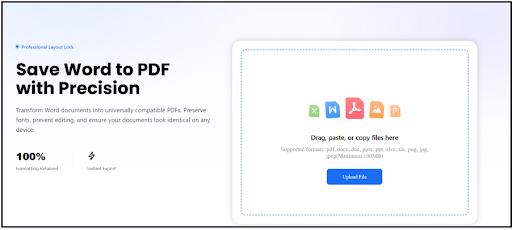
Step 1: Open the Word to PDF tool
Go to TeraBox’s Word to PDF conversion page in your browser. No downloads or installs needed to get started.
01-how to convert word to pdf
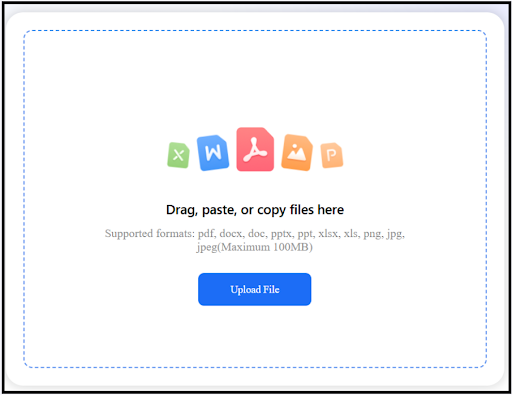
Step 2: Upload your DOC or DOCX file
Click the upload button, or simply drag and drop your DOC or DOCX file into the upload area. Whether you’re performing a quick DOCX to PDF conversion or working with an older DOC file, the upload process is the same. During testing, the upload completed without any issues, and the browser interface responded quickly without requiring an account sign-in before selecting the file. The current tool supports uploads of up to 100 MB, making it suitable for most everyday Word documents.
02-word to pdf converter
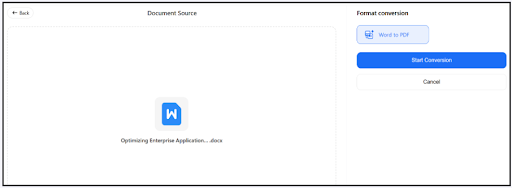
Step 3: Start the conversion
Once the upload finishes, start the conversion. In my testing, the conversion itself only took a few seconds for a typical multi-page document. The resulting PDF preserved the document structure well, including headings, images, tables, hyperlinks, and page numbering.
03-convert word to pdf
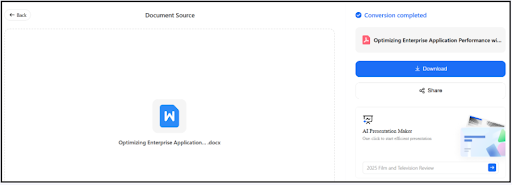
Step 4: Download or save the PDF
When the conversion finishes, download the PDF to your device. The download started immediately in my browser without requiring additional software. If you plan to keep multiple versions of the document, it’s also a good idea to rename the PDF before saving it so it’s easier to identify later.
04-transform word to pdf
Step 5: Review the converted PDF
Open the downloaded PDF and scroll through the entire document. As a final quality check, pay close attention to your fonts, spacing, tables, images, hyperlinks, and page numbers to ensure everything looks flawless before professional submission.
TeraBox also states that it places emphasis on data security and privacy protection across its services. Even so, as with any online document converter, it’s sensible to avoid uploading confidential or highly sensitive files unless you’re comfortable with the service’s current privacy policies and terms.
FAQs
Q1: How do I convert Word to PDF?
You can use Microsoft Word’s Save As or Export option, Google Docs’ download feature, or an online Word to PDF converter like TeraBox if you want a quick browser-based option.
Q2: How do I save a Word document as a PDF?
In Word, go to File > Save As, then choose PDF as the file type. This is the quickest way to save Word as PDF. If you don’t have Word installed, you can also convert Word to PDF online using a browser-based converter.
Q3: Does converting Word to PDF keep the formatting?
In most cases, yes, especially with common fonts and clean formatting. Documents with unusual fonts, dense tables, or heavy custom styling may shift slightly, so it’s worth reviewing the result.
Q4: Can I convert Word to PDF online without installing software?
Yes. You can convert Word to PDF online by uploading your DOC or DOCX file to a browser-based converter and downloading the finished PDF without installing any software.
Q5: Do images and tables stay in place after conversion?
Generally yes, though it’s a good idea to double-check table width and image placement in the final PDF, especially for longer or more complex documents.
Q6: Is TeraBox’s Word to PDF tool free to use?
Availability, usage limits, and plan requirements may depend on your TeraBox account and the current product page, so it’s best to check the tool directly for the most accurate details.
Conclusion
Converting a Word document to a PDF is the simplest way to ensure your hard work looks exactly the way you intended, no matter what device or screen your recipient uses.
If you need to convert Word to PDF online, a browser-based tool like TeraBox’s Word to PDF tool converter offers a quick and convenient option without requiring software installation.
