



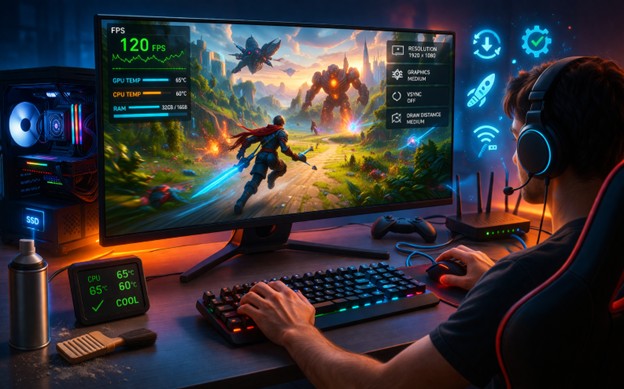
Lag in AI generated games can turn exciting play sessions into frustrating pauses. The game world suddenly slows down, movements feel delayed, and everything stutters just when the action gets good. Many players face this problem because these games create new content on the fly, which puts extra work on your computer. The good news is you can fix most issues without spending much money or time. This guide walks you through clear steps that solve the most common causes. Follow them one by one, and you will notice smoother frames and faster responses right away.
Before changing too many settings at once, it helps to test performance in a simple environment. You can try a lightweight AI game like Tap Tap Shots to quickly see how different settings affect responsiveness and frame rate in real time
Understanding the Main Causes of Lag in AI-Generated Games
Lag happens when your computer cannot keep up with everything the game asks it to do. AI generated games often build levels, characters, or effects in real time, so they use more processing power than regular games. If your machine runs hot or lacks enough memory, the game drops frames and feels slow.
Old or dusty hardware is another big reason. Fans clogged with dust make the processor and graphics card overheat and slow down to protect themselves. Outdated software also plays a part because it fails to talk properly with the game. High display settings push too many details on screen at once, while too many other programs running in the background steal resources. Even a weak internet connection causes delays if the game needs to load shared content. Once you know these causes, fixing them becomes straightforward. Start with the easiest checks and move to bigger changes only if needed. Most players see big improvements after the first three steps.
Optimizing Your Hardware Setup
A strong hardware foundation stops lag before it starts. Many issues disappear after small upgrades or simple maintenance.
- Make sure your computer has at least 16 gigabytes of memory because AI generated games load new parts of the world constantly, and low memory forces the system to slow down.
- Keep your processor and graphics card cool by cleaning dust from fans every few months and using a cooling pad during long sessions to avoid automatic speed drops.
- Switch to a solid state drive if you still use an older hard disk drive, since faster storage loads game files quickly and reduces waiting times between areas.
- Check that your power supply delivers enough electricity to the graphics card because weak power causes sudden frame drops during busy scenes.
These changes give your machine the breathing room it needs. You do not have to replace everything at once. Start with memory and cooling because they bring the fastest results for most users.
Adjusting Game Settings for Smoother Play
Lowering a few in-game options can double your frame rate without losing much visual quality. The key is to test one change at a time so you see exactly what helps.
- Reduce the screen resolution from 4K or high to 1080p because fewer pixels mean less work for the graphics card and instantly smoother movement.
- Set texture quality and shadow details to medium instead of high since detailed images and dark areas eat up memory and processing power.
- Turn off or lower anti-aliasing and special effects like bloom or depth of field because these add extra calculations that AI generated games already handle heavily.
- Limit the draw distance so the game stops loading far-away objects until you get closer, which frees up resources for the action right in front of you.
- Disable vertical sync if you notice input delay, because it sometimes caps the frame rate lower than your hardware can actually manage.
After each change, play for a few minutes and note the difference. Many players reach a perfect balance where the game looks good and runs fast. Save your new settings as a custom profile so you can switch back easily if you want higher visuals on a stronger computer later.
Keeping Your Software Up to Date
Fresh software removes hidden bugs and improves how your computer talks to the game. Outdated parts create small conflicts that build into big lag.
- Update your graphics drivers regularly because new versions include special fixes for modern games and often boost speed by ten to twenty percent.
- Check your operating system for the latest updates since they repair memory management and background tasks that affect performance.
- Make sure the game itself has all available patches because developers often add optimization improvements after the first release.
- Run a quick scan with your security software to remove any unwanted programs that might run quietly and use resources.
Set your computer to check for updates automatically, so this step stays easy. Players who keep everything current rarely face sudden performance drops after a game update.
Reducing Background Programs and Processes
Extra programs steal memory and processor time even when you do not see them. Closing them gives the game full access to your computer.
- Open the task manager and end any browser tabs, music players, or chat apps you do not need during play because each one uses a surprising amount of memory.
- Turn off startup programs that launch every time you boot your computer, since they stay active and reduce available resources from the start.
- Check for automatic downloads or cloud backups running in the background and pause them while you play to stop sudden speed dips.
- Use a simple performance mode if your operating system offers one because it automatically limits background activity and focuses power on the active game.
After clearing the background, restart the game and enjoy the difference. This step alone solves lag for many people who keep multiple apps open at once.
Advanced Tips for Better Performance
If lag still appears after the basic fixes, try a few more targeted steps. Cap the frame rate slightly below your monitor’s maximum to keep the load steady and prevent sudden spikes. Use full-screen mode instead of windowed because it gives the game direct control over the display. For games that run on a laptop, plug in the power cord and set the power plan to high performance so the machine does not save battery by slowing down. If you play online, connect through a wired cable instead of wireless to cut down on network delay. Test your internet speed and close any downloads happening at the same time. Over time, keep an eye on temperatures using free monitoring tools and clean the inside of your computer case every six months. These small habits keep performance high for months without extra cost.
Wrapping Up
You now have a complete set of fixes that address every common cause of lag in AI generated games without code. Start with hardware and settings because they bring the biggest improvements for most players. Then move to software and background checks for the final polish. Whether you build your games with Astrocade or simply enjoy playing them, these steps make every session smoother and more enjoyable. The changes are safe, reversible, and work on almost any computer. Give yourself a short testing session by play with friends online after each fix and track the results. Soon you will play without interruptions, fully lost in the dynamic worlds these games create.
If lag returns later, run through the list again because new game updates or added programs can change what your computer needs. Stay consistent with cleaning and updates, and your AI generated games will keep running at their best. Enjoy the improved speed and have fun exploring every new adventure without a single stutter holding you back.
